Grow cycle and pods
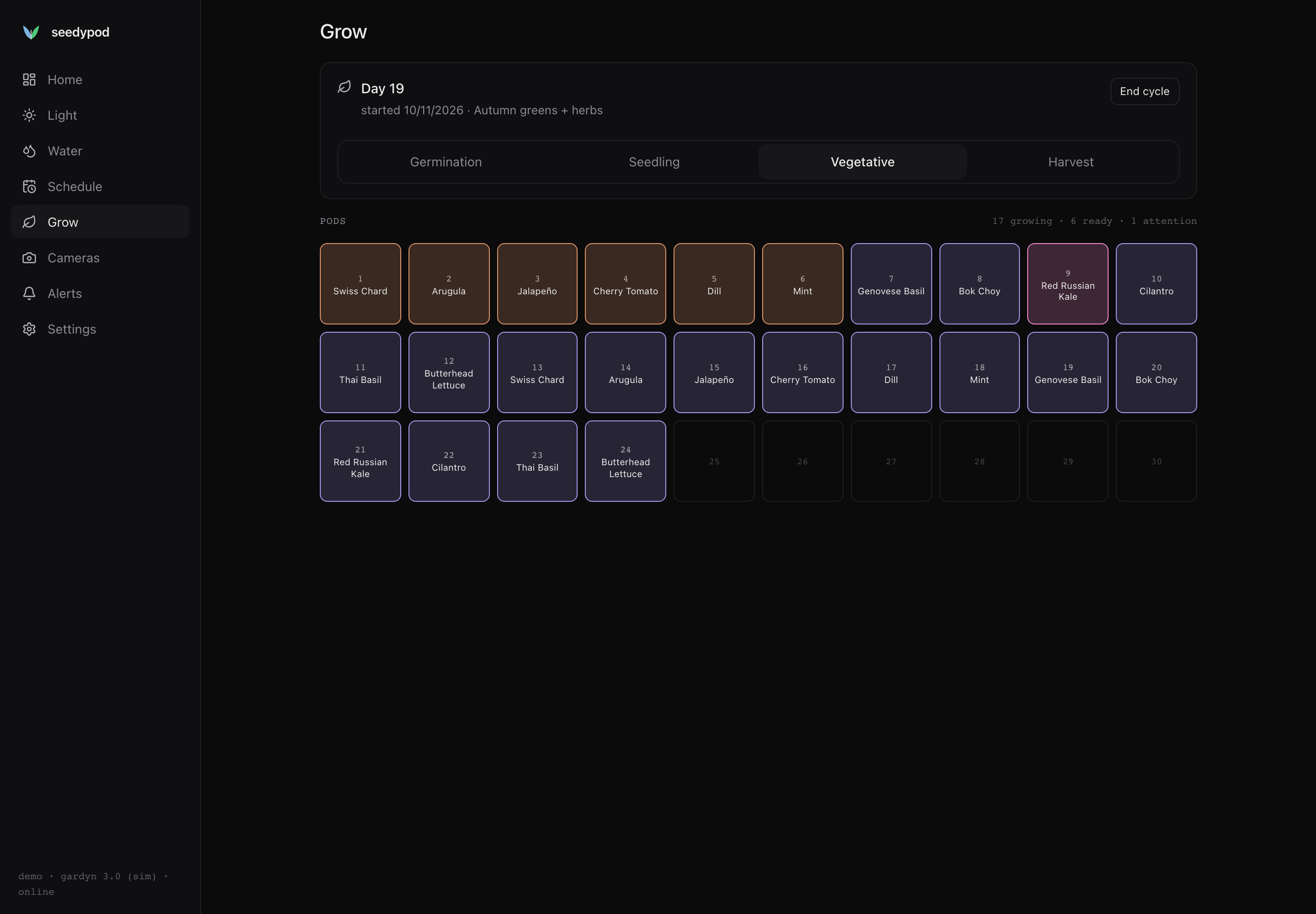
The Grow screen tracks one grow at a time and what is planted in each of the tower’s 30 pods.
Start a cycle
Press Start cycle. The card then shows the day of the cycle and the start date. Starting a new cycle ends any open one. Move the cycle through Germination, Seedling, Vegetative and Harvest with the stage selector, and press End cycle when you clear the tower. Past cycles stay in the history (GET /api/grow/history).
Reminders
While a cycle runs, core raises reminders as alerts on the days you set in Settings → Grow reminders:
| Reminder | Default | What to do |
|---|---|---|
| Thin seedlings | day 14 | Thin to the strongest sprout per pod. |
| Check roots | day 21 | Check roots for length and colour; trim if they reach the pump. |
| Harvest window | day 35 | Pick outer leaves to keep plants producing. |
| Add nutrients | every 7 days | Add nutrients to the tank. This one repeats. |
Set a value to 0 to turn that reminder off. Reminders appear on the home screen and the Alerts screen; press Done when the chore is finished. The same reminders show up in Home Assistant with a “done” button each, and agents can see and acknowledge them over MCP.
Pods
The grid shows all 30 slots. Tap a pod to set the plant name, its status and notes:
- Empty, Seeded (records today as the planted date), Growing, Harvest (ready to pick), or Attention (something looks wrong).
The counts above the grid summarise how many pods are growing, ready, and need attention.
Plant health from the cameras
Core can estimate how green each pod looks from the camera stills, using classical image analysis (green-pixel area over time, no machine learning). The per-pod trend is available from the API (GET /api/vision/pods) and as the pod_health MCP tool.
The per-pod crop map assumes a fixed camera position and pod geometry. Like everything that touches the hardware, it has not been checked against a real Gardyn’s cameras yet.