seedypod for iPhone
The app isn’t on the App Store or TestFlight yet. For now you build it from source with Xcode and run it on your own iPhone.
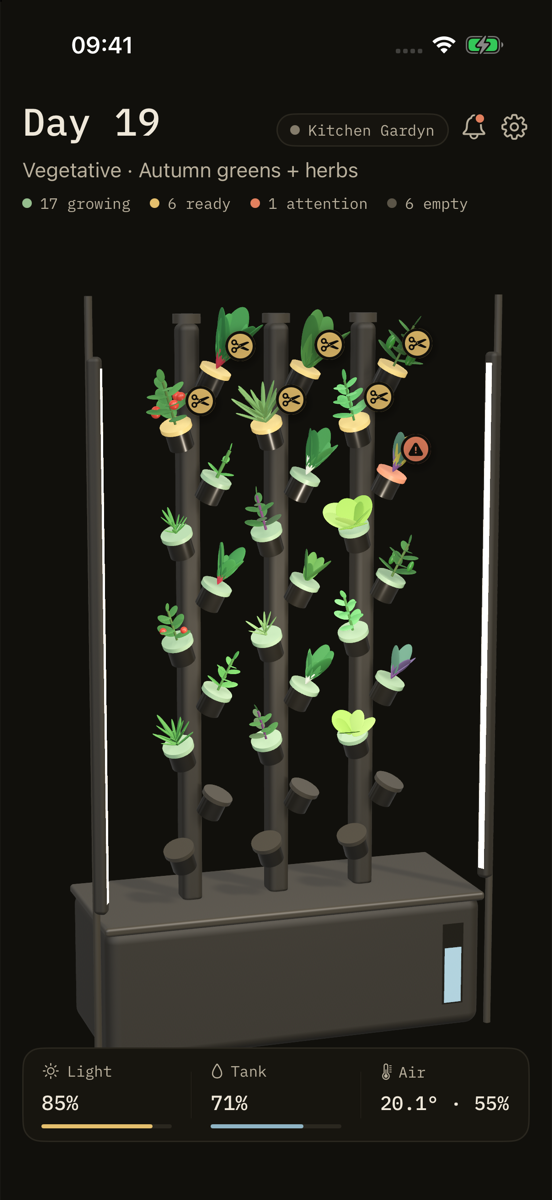
A native companion for your tower. Home is the Gardyn itself, in 3D: every pod colored by how it’s doing, the light bars glowing at their level and the tank showing how much water is left. Tap a pod to see where it is in its grow and what to do about it, or tap the light or tank to change them. The app talks straight to seedypod core on your network. There’s no account, no cloud and no telemetry.
What it does
The tower
Home shows your unit’s tower in 3D, built from the same layout as the web UI. Pods are colored by status (growing, ready, needs attention, empty), and each one holds a plant drawn for its crop and sized by its stage, from sprout to full. Ready pods carry a scissors flag and pods that need attention a warning flag. The tank’s window shows the water level, the light bars glow at the light’s brightness, and the columns shimmer while the pump runs. Above the tower are the day of the grow cycle, its stage and a count of pods by status; below it, the light, tank and air readings.
Drag to turn the tower, pinch to zoom, and double-tap to put it back.
Pods
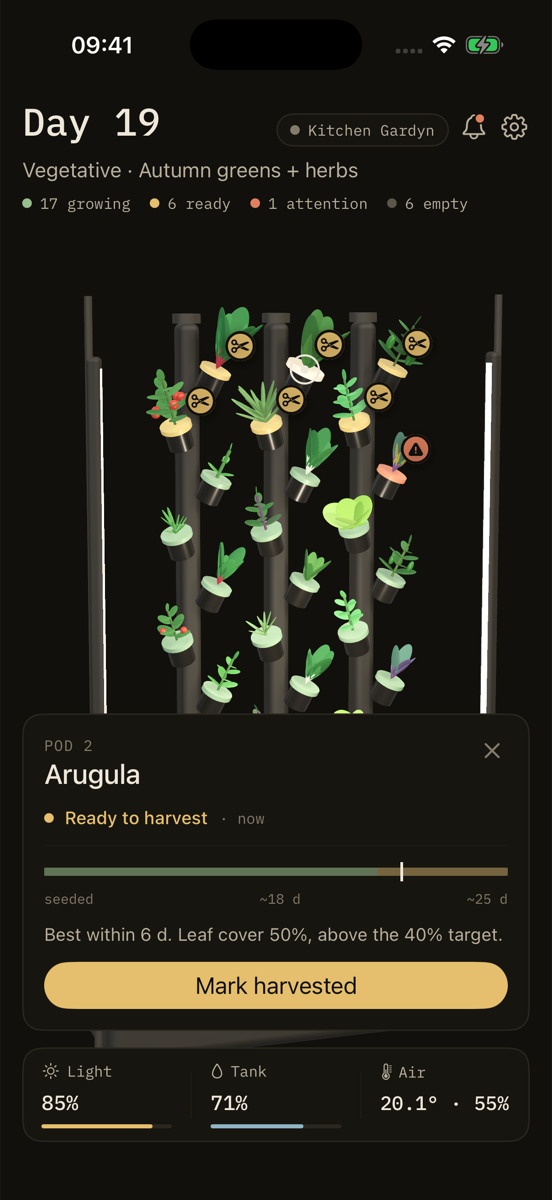
Tap a pod to open its card: the crop, its status and for how long, a harvest timeline from seeding to the end of its harvest window, and the reason behind the status (for example, the leaf cover against the target). The card’s main button depends on the status:
- Mark harvested on a pod that’s ready.
- It’s fine now on a pod marked as needing attention. This also clears the attention note.
- Plant this pod on an empty pod. Type a crop or pick a common one; it’s marked seeded from today, so the harvest outlook and reminders count from there.
The … menu on a planted pod marks it as needing attention or ready to harvest, or clears it. Clearing asks first, and the pod’s photos and history stay on the unit.
Light and water
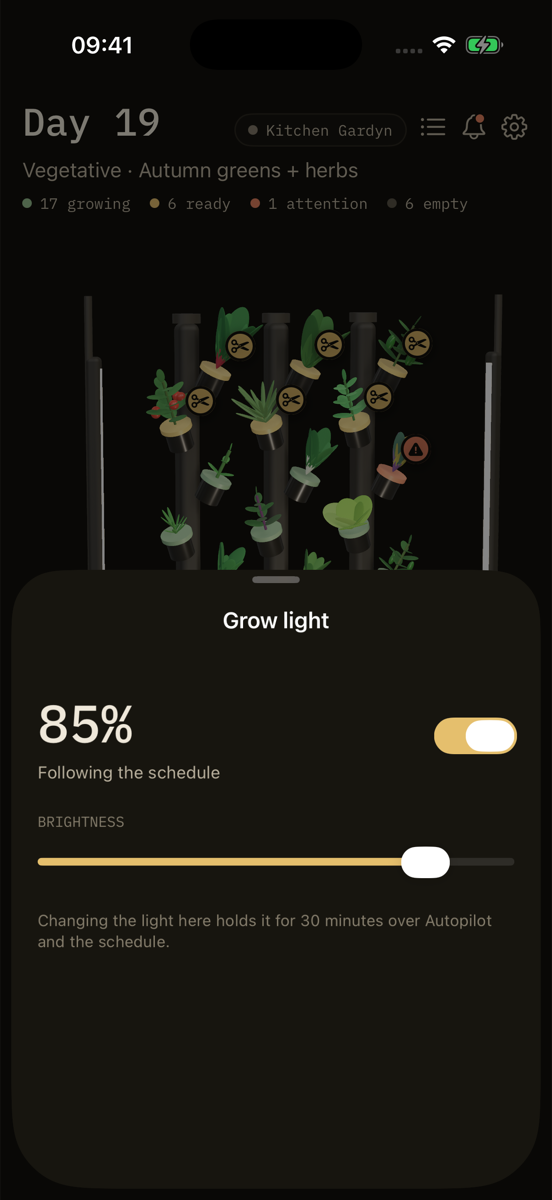
Tap the light bars or the Light reading for the grow light sheet: on and off, and a brightness slider. As in the web UI, a change you make here holds for 30 minutes over Autopilot and the schedule, then the schedule takes over again. Hand back to the schedule ends the hold early.
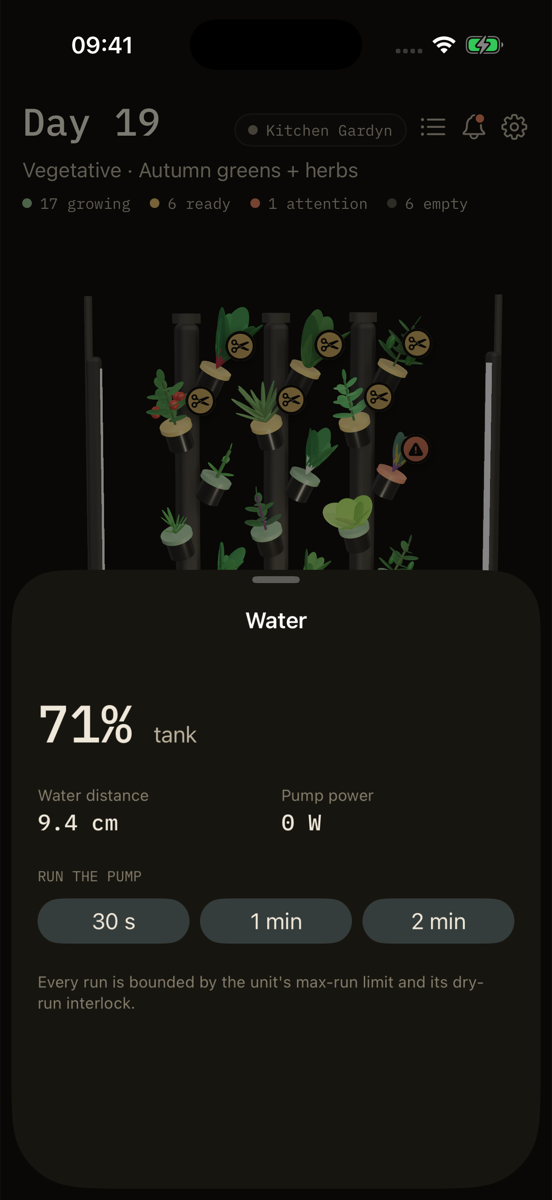
Tap the tank or the Tank reading for the water sheet: the tank level, the distance to the water and the pump’s power draw, and buttons to run the pump for 30 s, 1 min or 2 min, with Stop while it runs. Every run is bounded by the unit’s maximum run time and its dry-run interlock, the same pump safety that applies everywhere else. If the pump has latched a fault, the sheet says so; acknowledge it under Alerts to re-enable the pump.
Alerts
The bell at the top of Home opens Alerts: grow reminders and latched hardware faults from the unit. Swipe or long-press an alert to acknowledge it.
Settings
The gear opens Settings: the unit’s name and address, its model, board and unit id, the core and hardware daemon versions and whether the daemon is online. This is also where you enter an API key and switch to another unit.
Live updates
The app follows core’s live event stream (/api/ws), so a change made from the web UI, a schedule, Autopilot or Home Assistant shows up on the phone within a couple of seconds. It also refreshes every 30 seconds in case the stream drops.
Connect to your unit
The first screen looks for units on your Wi-Fi.
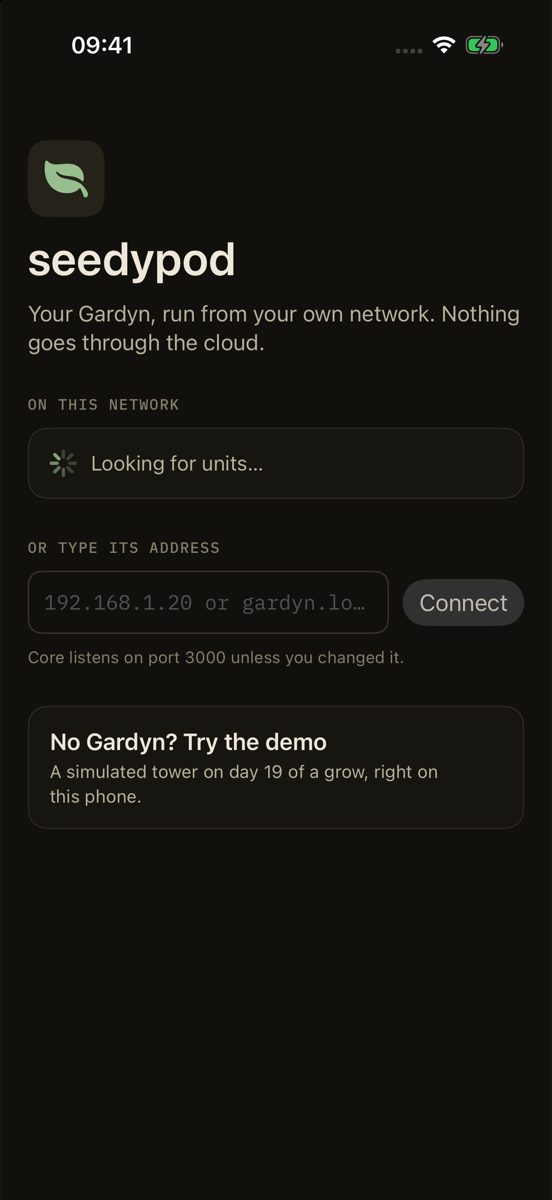
- Join the same network as your Gardyn. Check that
http://seedypod.local:3000/(or the unit’s IP address) opens in Safari. - Open the app and allow Local Network access when iOS asks. Without it the app can’t see or reach your unit.
- Under On this network, tap your unit. Core advertises itself over Bonjour as
_seedypod._tcp, so units appear by name, with their core version and whether they need an API key. - If your unit isn’t listed, type its address under Or type its address, such as
192.168.1.20orseedypod.local, and tap Connect. Core listens on port 3000, which the app assumes unless you type another one (192.168.1.20:8080).
The app remembers the unit. To switch, open Settings and tap Connect to another unit.
Demo mode
No Gardyn yet? Tap No Gardyn? Try the demo on the connect screen. It runs a simulated tower on day 19 of a grow right on the phone, with pods ready to harvest, one that needs attention, and working light and water controls. Nothing is sent anywhere. To leave, open Settings and tap Leave the demo.
API key
By default core trusts your LAN. If you’ve set an API key on the unit under Settings → API access in the web UI, the app needs it too: a unit that needs one says so in the list, and requests fail with “The unit wants an API key” until you add it. Open Settings in the app, enter the key under API key and tap Save key. The app sends it as an X-API-Key header and keeps it in the iPhone’s Keychain.
Build from source
You need a Mac with Xcode 26 or later and an iPhone on iOS 26 or later.
brew install xcodegen
git clone https://github.com/seedypod/ios.git
cd ios
xcodegen generate
open Seedypod.xcodeproj
In Xcode, select the Seedypod scheme and an iPhone or simulator, then run it. To install on your own iPhone, choose your team under Signing & Capabilities for the Seedypod target; if Xcode says the bundle identifier is taken, change it to one of your own. In the simulator, demo mode works with nothing else running.
To try the app against a real core without a Gardyn, run core on your Mac with the simulator (pnpm dev, see Get started) and type <your Mac's IP>:3000 on the connect screen.
Troubleshooting
- “Turn on Local Network for seedypod”: iOS blocked the app from your network. Open Settings → Privacy & Security → Local Network on the iPhone and turn seedypod on, then go back to the app.
- Your unit isn’t found: type its address instead. Bonjour doesn’t cross subnets or VLANs, and some routers and guest networks block it or keep devices apart. If the typed address fails too, check that it opens in Safari on the same iPhone.
- An older core isn’t discovered: core started advertising
_seedypod._tcpafter v1.4.0 (in core#75 ). Units on v1.4.0 or earlier never appear in the list; type their address, or update core. On newer units, discovery is off ifSEEDYPOD_MDNS=0is set in the core service (Install). - “No seedypod answered at …”: nothing at that address replied as core. Check the IP, the port, and that core is running (
systemctl status seedypod-coreon the unit). - “The unit wants an API key”: add the key in the app’s Settings (API key).
- Controls fail or readings look stale: check the Hardware daemon line in the app’s Settings, and see Debugging.
Report app problems, with the app and core versions, in seedypod/ios issues .
What runs where
Core runs your schedules, Autopilot and reminders, and the hardware daemon applies the safety rules. The app is a client: closing it changes nothing on the unit, and every command it sends goes through the same core API and pump guard as the web UI. It’s open source under AGPL-3.0, at seedypod/ios .
Source reference: seedypod/ios README · Connect and discovery · Light, water and alert sheets · Core Bonjour advertising · ADR-0017