Web UI tour
Open http://seedypod.local:3000/ from any browser on your network. The sidebar (a tab bar on phones) has eight screens. Changes made anywhere, including from Home Assistant, an agent or a schedule, appear immediately: the UI listens to core’s live event stream instead of polling.
These screenshots are the real web UI from the live demo , which runs against a simulated tower with seeded history.
A one-minute silent tour of the real web UI against the simulated tower. Download the overview video.
Welcome
A fresh install opens on Welcome instead of Home, with two choices. Set up a new garden starts from the defaults. Restore from a backup brings a unit back from a downloaded file or from the backups in your bucket (Replace a dead SD card).
Home
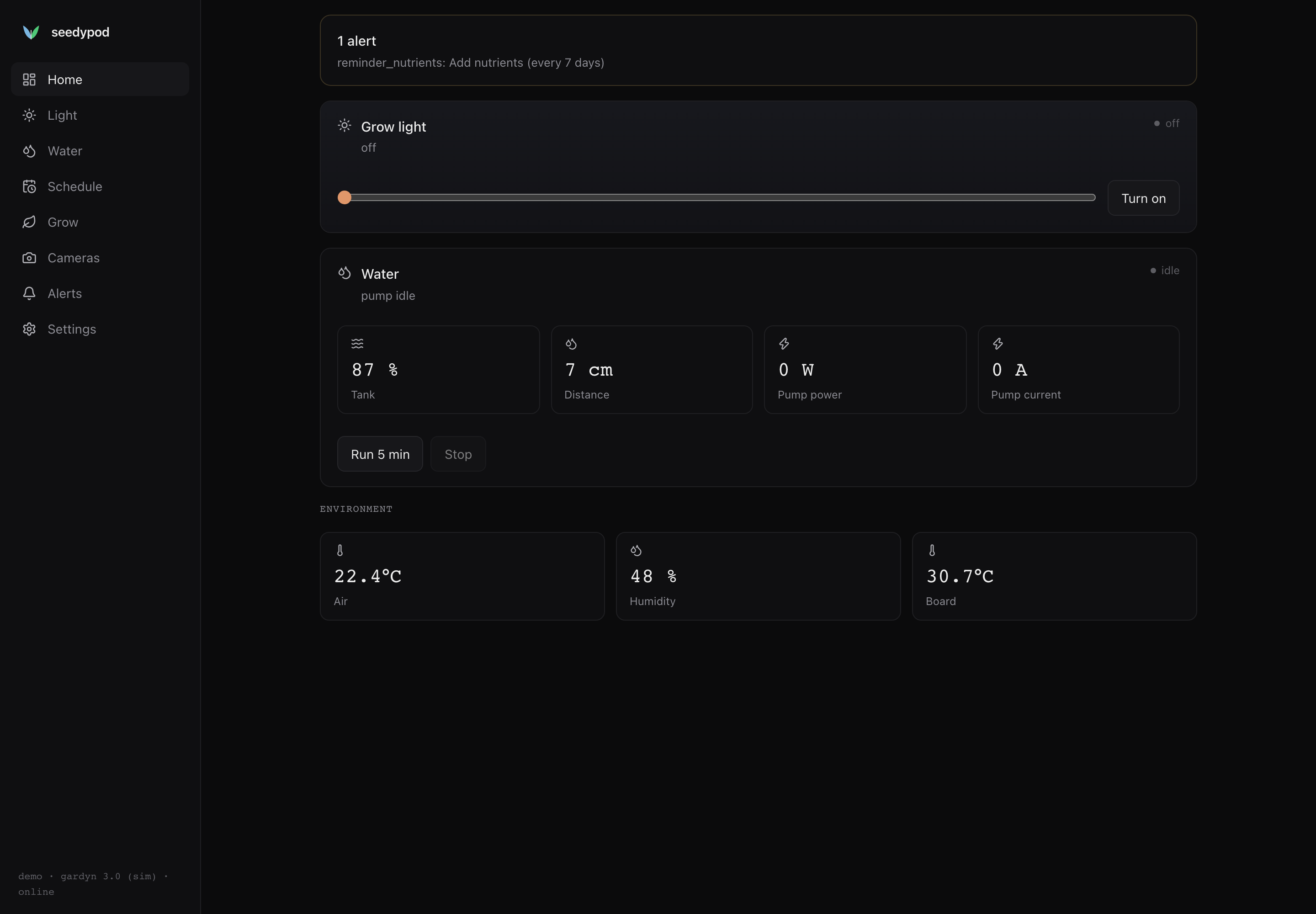
The grow light with a brightness slider and on/off button, the water card with tank level, ultrasonic distance and pump power, a Run 5 min button, and the environment readings: air temperature, humidity and the board temperature. Active alerts appear in a banner at the top.
Light
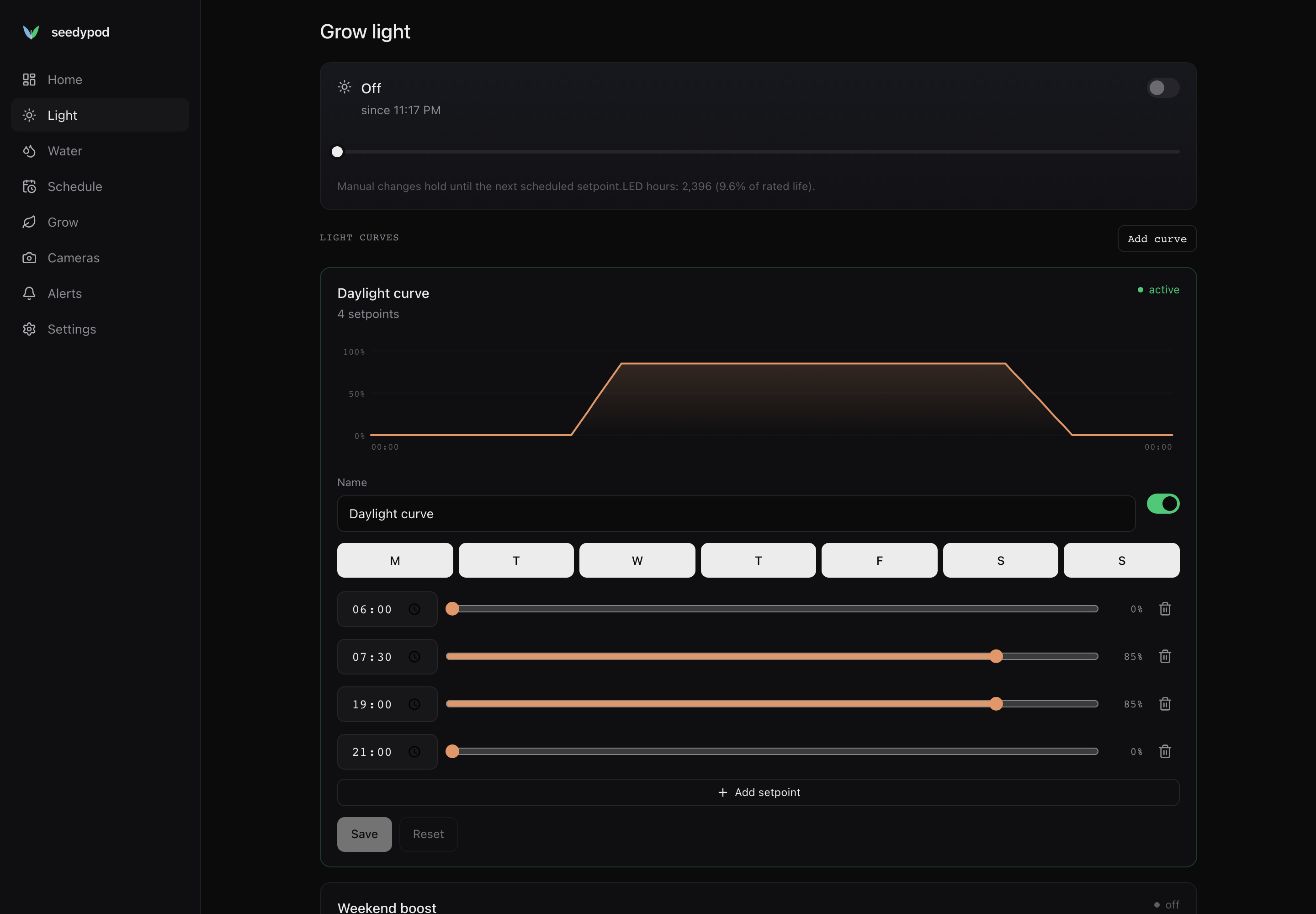
Turn the light on or off and set brightness. A change you make here holds for 30 minutes, then the light goes back to Autopilot or the schedule; Resume hands it back early. The page also shows the cumulative LED hours and how much of the rated life they represent. Below, you create and edit light curves.
Water
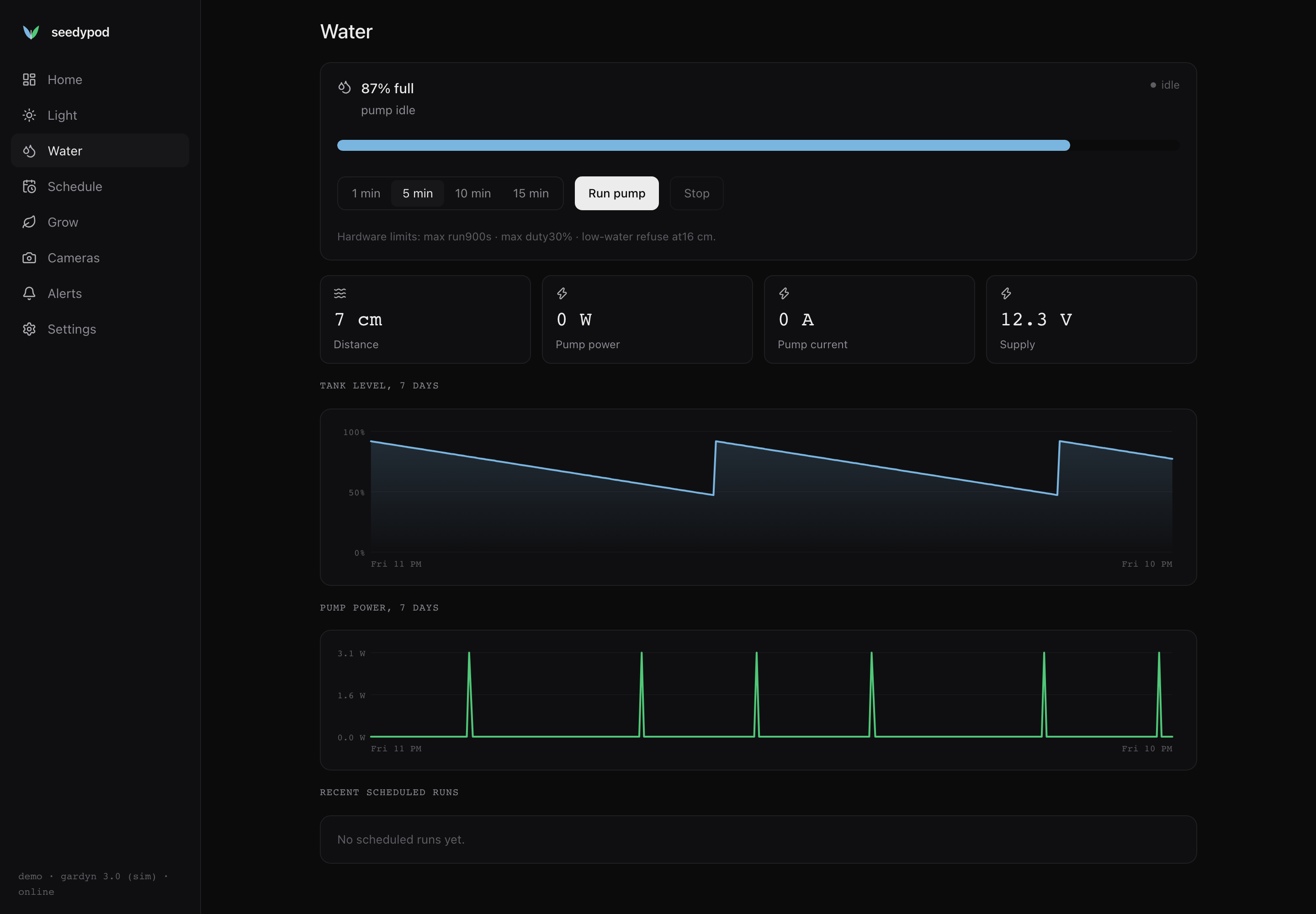
The tank level as a percentage and a bar, the pump state, and a run-once control: pick 1, 5, 10 or 15 minutes and press Run pump. The hardware limits are shown under the controls (max run time, max duty, and the distance at which a low tank refuses to start). Below are the supply voltage, pump current and power, seven days of tank level and pump power, and the recent scheduled runs.
If the pump is latched off after a fault, the card turns red and Run pump is disabled until you acknowledge the fault on the Alerts screen.
Schedule
All pump cycles and light curves in one place, each with an enable toggle. See Schedules.
Autopilot
Rules that act on readings rather than the clock: notify you, set the light, run the pump or a doser, or flag a pod when a condition holds. Each rule reads back as a sentence, starts in dry run, and can be backtested over recorded history before you arm it. A run log says why each rule did or didn’t act. See Autopilot.
Grow
The current grow cycle and its stage, and a grid of all 30 pods. See Grow cycle and pods.
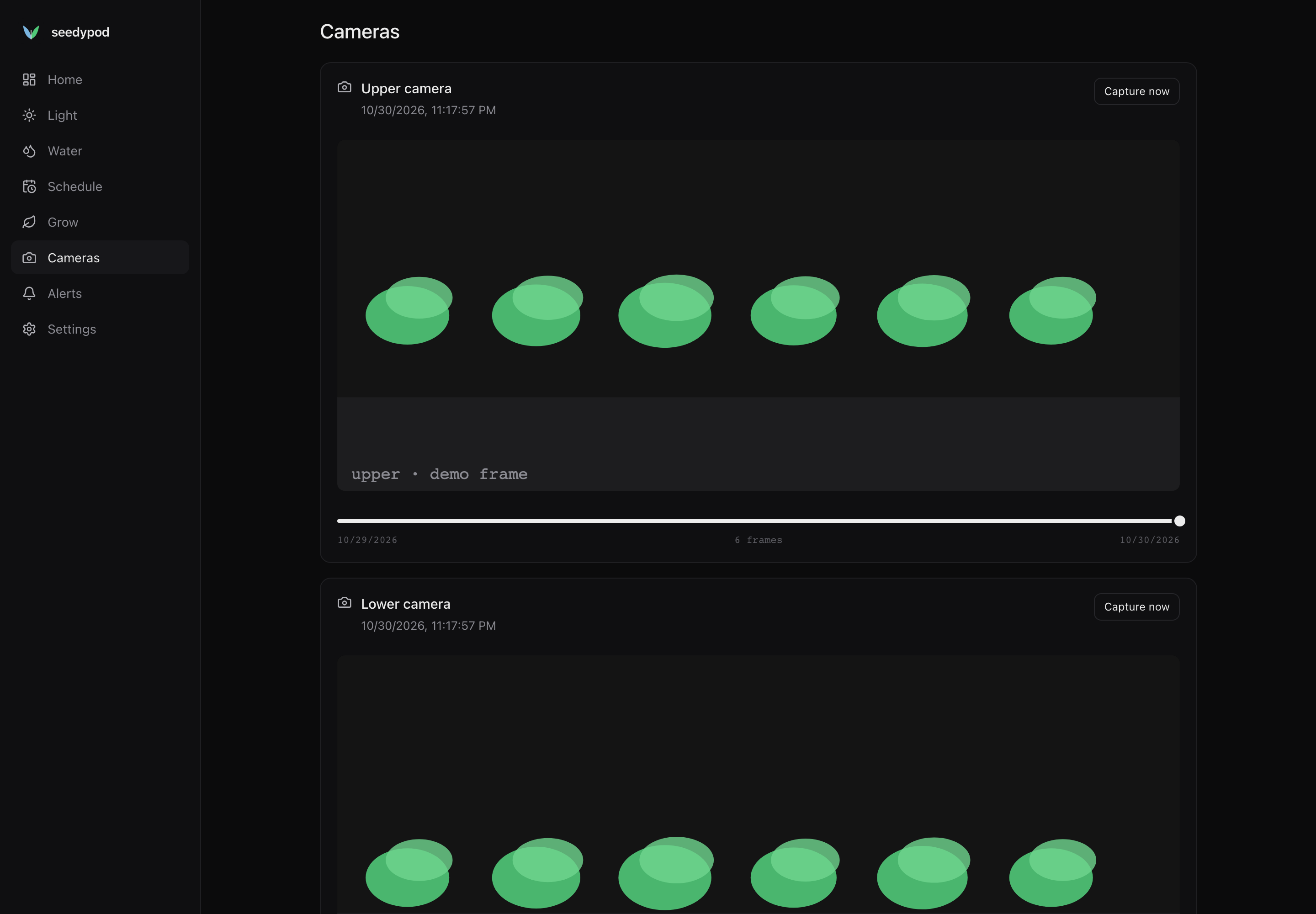
Cameras
The latest still from the upper and lower cameras, a Capture now button, and a slider that scrubs through the timelapse. Stills are captured automatically at the interval set in Settings (60 minutes by default; 0 disables it).
Analysis
How the camera analysers score each pod: which one drives the growth trends (Make primary), a pod’s green area over time from every analyser side by side, the latest photo with every analyser’s number per pod, and a dataset export. See Capture analysis.
Alerts
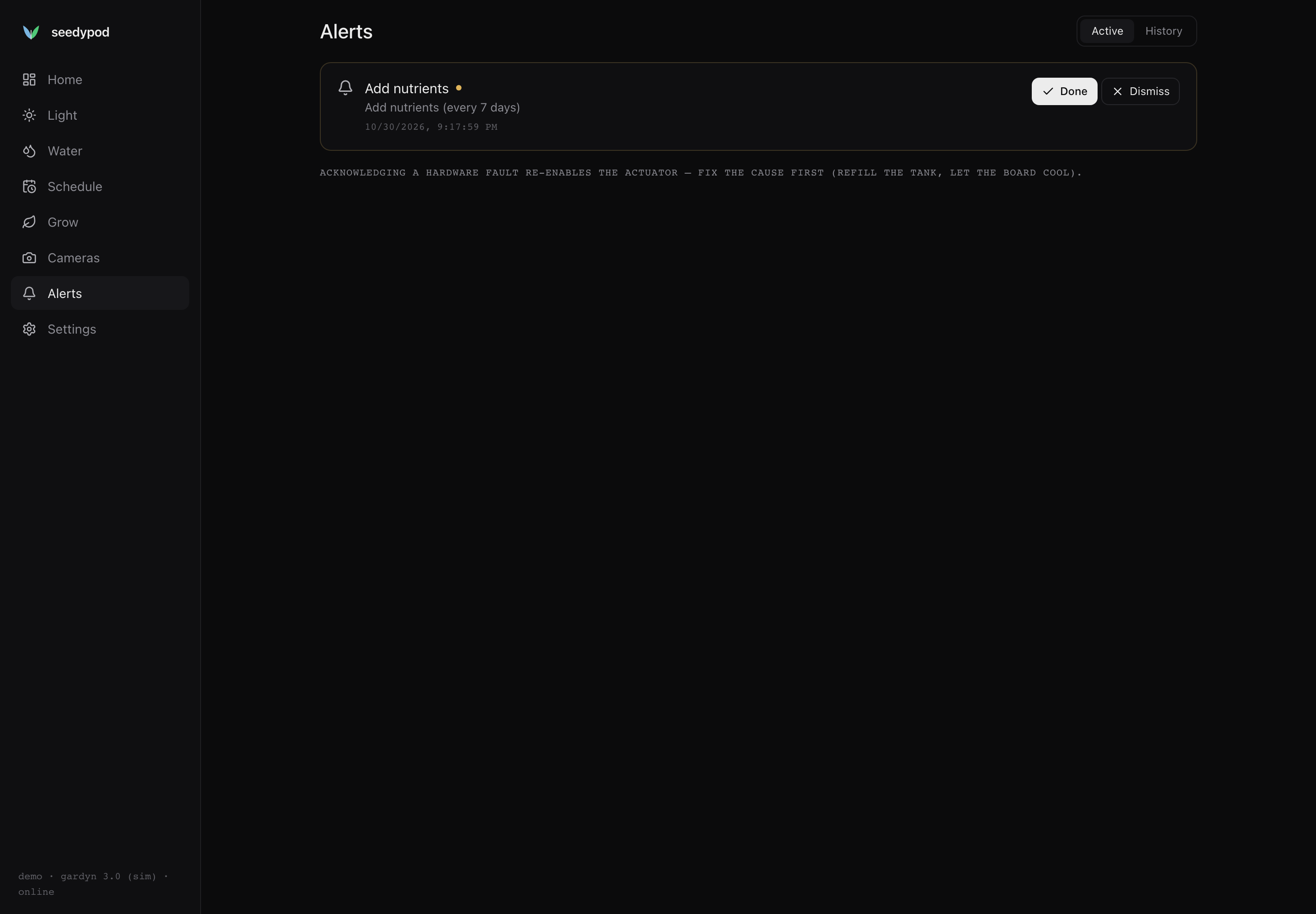
Active alerts, or the full history. Each alert has Acknowledge (or Done for a reminder) and Dismiss.
| Alert | Raised when |
|---|---|
| Water low | The tank reading crosses the low-water threshold. |
| Pump fault | The pump stopped because the tank ran dry or the board got hot. |
| Board over temperature | The board temperature reached the cutoff (36 °C by default). |
| Camera missing | A camera failed to capture. |
| Hardware daemon offline | Core lost contact with hald. |
| Thin seedlings, Check roots, Harvest window, Add nutrients | A grow reminder is due. |
| Off-device copy failed | Photos couldn’t be copied to your mirror bucket. |
| Rule name: message | An Autopilot rule’s notify action; clears when the rule’s condition stops holding. |
Acknowledging a pump fault re-enables the pump. Fix the cause first: refill the tank, or let the board cool.
Sensors
Every sensor the unit has, whether it answered at boot, and its latest reading. Add a pH, EC or water-temperature probe, calibrate it with a guided wizard, or remove it. See Adding a probe.
Settings
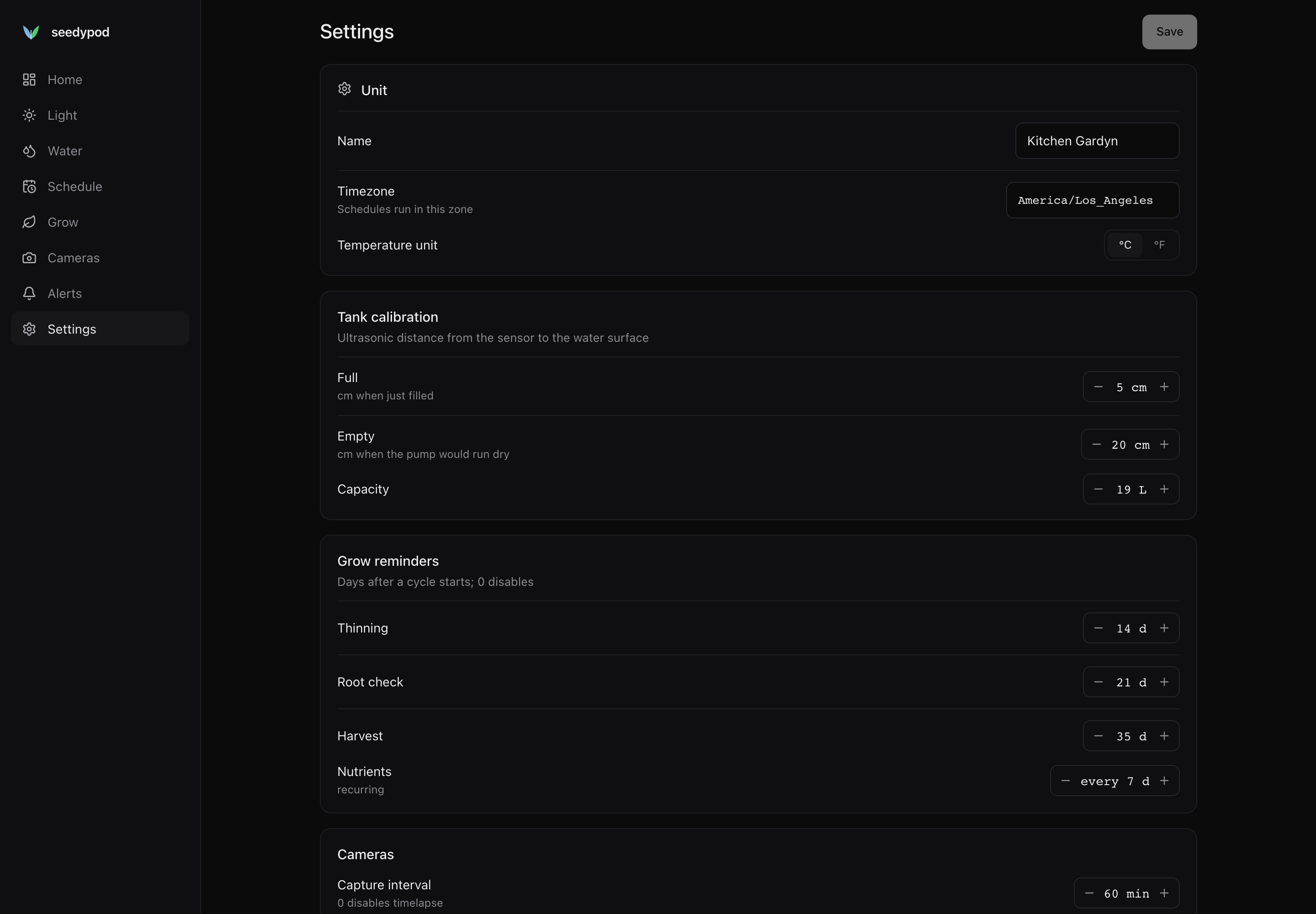
Unit name, timezone and temperature unit; tank calibration (distance when full and when empty, and the tank capacity); grow reminder days; the camera capture interval; the Home Assistant bridge; an optional API key; off-device storage and analysis (opt-in); Storage, the SD card’s writes per day; Backup, which downloads a backup, shows the nightly bucket backups, restores one and undoes a restore (Maintenance → Backups); a link to Wi-Fi, where you change networks or open the setup hotspot (Change Wi-Fi); and an About section with the core and daemon versions and the unit id.
Kiosk
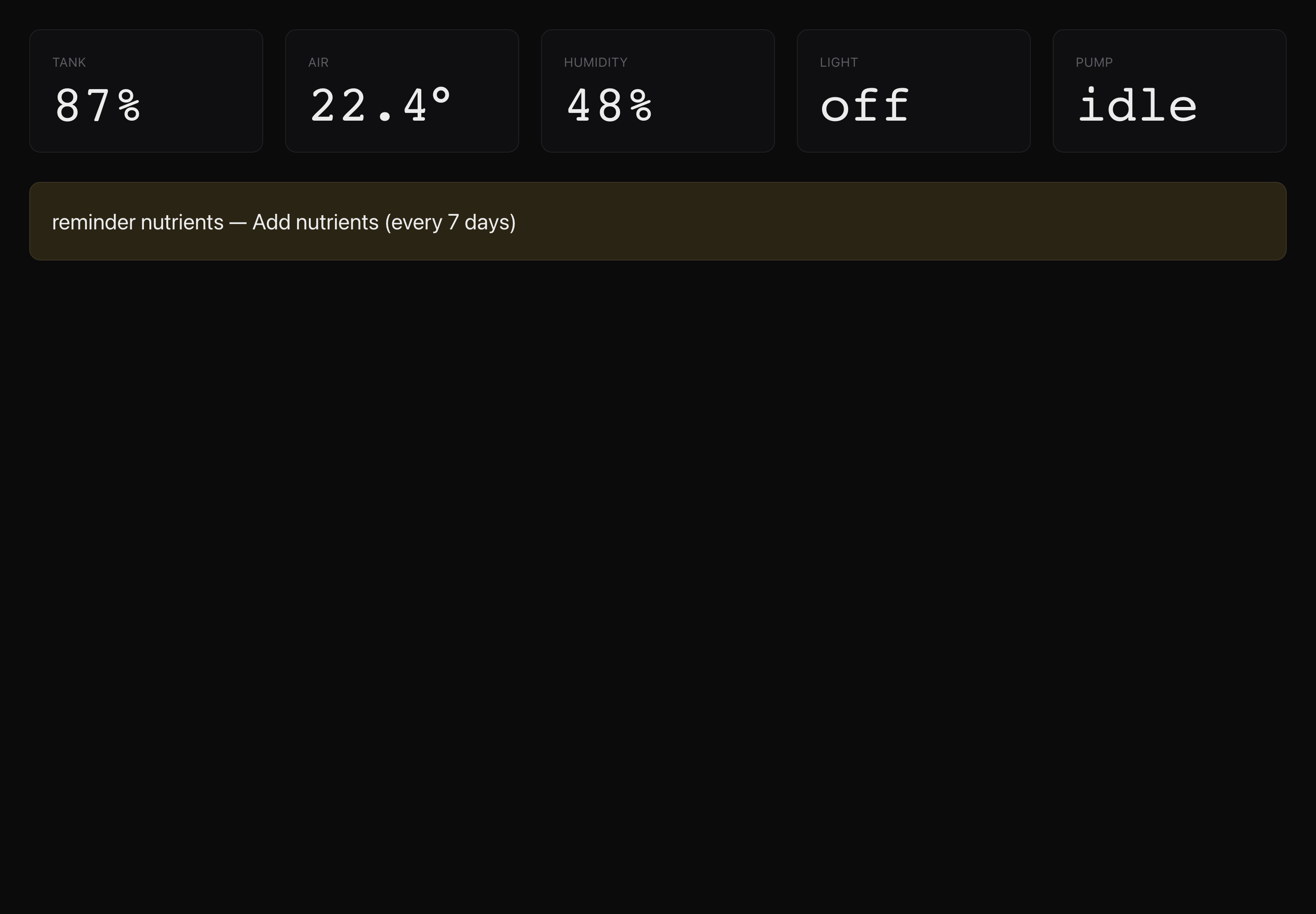
http://seedypod.local:3000/kiosk is a wall-display mode: big numbers for the tank, air temperature, humidity, light and pump, plus any active alerts, with no sidebar. It refreshes on its own every few seconds.